- Overview
- Sales Order
- Purchase Order
- Purchase Credit Memo
- Shipments
- Warehouse Shipment
- Warehouse Receipt
- TC ASN
- TC AutoPack
- TC UDF Caption Setup
- TC Report
- TC Transaction Status
- TC Labeling
Overview
Customizations
TrueCommerce has made modifications to the user interface in order to accommodate order information that may not be traditionally stored within standard Dynamics 365 Business Central pages. These modifications allow for compliancy data points to be included on outbound documents to trading partners. These data points can be created during the export of an order or through manual entry.
New Functionality
Sales Order
On the Sales Order page, TrueCommerce has added a TrueCommerce section, which contains critical order data points such as the Purchase Order Number, EDI Store Number, and EDI Distribution Center, as well as five additional user defined fields (UDFs) that can be mapped from an inbound document to Dynamics 365 Business Central.
Purchase Order
On the Purchase Order page, TrueCommerce has added a TrueCommerce section, which contains critical order data points such as the TC Status, as well as five additional UDFs that, if mapped from an inbound purchase order, can be carried over to the posted purchase invoice and posted purchase receipt.
Purchase Credit Memo
On the Purchase Credit Memo page, TrueCommerce has added a TrueCommerce section, which contains critical order data points such as the TC Status, as well as five additional UDFs that, if mapped from an inbound Credit/Debit Adjustment, can be carried over to the purchase credit memo.
Shipments
On the Shipments page, TrueCommerce has added a TrueCommerce tab, which contains critical order data points such as the Purchase Order Number, EDI Store Number, and EDI Distribution Center, as well as five additional UDFs that, if mapped from an inbound purchase order, can be carried over to the shipment. To view the associated TrueCommerce, TC Package Detail, TC Batch AutoPack, TC AutoPack, and TC ASN pop-ups for the posted sales shipment, click the Navigate button.
Warehouse Shipment
TC User Defined Fields and TC Revision have been added to Warehouse Shipments. This support is to provide additional filter options on import.
Warehouse Receipt
TC User Defined Fields and TC Revision have been added to Warehouse Receipts. This support is to provide additional filter options on import.
TC ASN
The TC ASN tab drop-down on the posted sales shipment contains three selections: TC AutoPack Template, TC Customer Settings, and TC Item Package Settings. Each of these selections can be set up for TC AutoPack to enhance the packaging process for shipments.
TC AutoPack
By assigning packing quantity values for items through TC AutoPack, the packaging process for shipments can be optimized. The TC AutoPack Template in Dynamics 365 Business Central provides a means for the user to create new shipping templates and to edit and search existing templates. It also provides for customer package rules to be created based on mixed carton or pure carton. The user must then associate the auto pack template to a Dynamics 365 Business Central customer, ensuring that contents are packed in the manner required for the customer.
TC UDF Caption Setup
TrueCommerce has UDFs that can be carried over from the inbound purchase order to the Sales Order and UDFs on the vendor Purchase Orders that can be carried over to the Posted Purchase Receipts and Posted Purchase Invoices.
TC Report
The TrueCommerce Activity Report displays the Pulse Dashboard after you log in to the Foundry platform.
TC Transaction Status
Support is added to provide visibility within Dynamics 365 Business Central to see when documents have been sent to the Trading Partner.
TC Labeling
Leveraging the TrueCommerce Labeling API, capabilities have been added to print labels from Dynamics 365 Business Central. The same labels printed from Transaction Manager are used
Form Reference
Sales Order
All of the TrueCommerce user-defined fields (UDFs) can be carried over from the Inbound Purchase Order to the Sales Order. Additionally, all of the TrueCommerce UDFs on Sales Orders can be carried over to Posted Sales Shipments and Posted Sales Invoices.
TrueCommerce
Following is a list of these header level UDFs.
| Fields | Description |
| TC UDF (1-10) | Any additional information sent in the inbound purchase order that is pertinent to your business can be stored in these UDFs. |
| TC PO Number | The purchase order number can be stored in this field. |
| TC Store Code | The EDI store number from the inbound purchase order can be stored to Dynamics 365 Business Central in this field. |
| TC 3PL | The third party logistics (3PL) of the Sales Order can be stored to Dynamics 365 Business Central in this field. Used for the Warehouse Shipping Order (940) Import. |
| TC ASN Type | Provides the drop-down options of No Pack, Pick & Pack, Standard, Pallet Pick & Pack, or Pallet Standard ASN types to be imported into Transaction Manager and sent to your trading partner. The selection made in the TC ASN Type drop-down takes precedence over the selection made in Transaction Manager. |
| TC Ship To Type | Provides the drop-down options of Store and DC ship-to types to be imported into Transaction Manager and sent to your trading partner. |
| TC Distribution Center Code | The EDI distribution center from the inbound purchase order can be stored to Dynamics 365 Business Central in this field. |
| TC Department Number | The EDI department number from the inbound purchase order can be stored to Dynamics 365 Business Central in this field. |
| TC Bill of Lading | The EDI Bill of Lading from the Warehouse Shipping Advice (945) can be stored to Dynamics 365 Business Central in this field. |
| TC Carrier Pro | The EDI Carrier Pro from the Warehouse Shipping Advice (945) can be stored to Dynamics 365 Business Central in this field. |
| TC Trailer Number | The EDI Trailer Number from the Warehouse Shipping Advice (945) can be stored to Dynamics 365 Business Central in this field. |
| TC Price Exception | This will be checked based on your Transaction Manager settings as a visual indicator that the price on the inbound purchase order differs from the Dynamics 365 Business Central price. |
| TC Revision | This UDF is used to maintain/track the Sales Order revision number to be used when sending the Purchase Order Acknowledgement to the Customer. |
| TC Date (1-5) | Any additional dates sent in the inbound purchase order that is pertinent to your business can be stored in these UDFs. |
| Labeling (Label Partner, Label Template) | During the Sales Order creation, it is possible to pass these values in when exporting a Purchase Order from Transaction Manager. It will be brought to the Posted Sales Shipment from the sales order. |
| Ship-from Address Fields (Name, Address1...) | The Ship From Address for label printing can be set when creating the sales order during the PO export from Transaction Manager. It will be brought to the Posted Sales Shipment from the sales order. |
| Warehouse Shipping Order Status | The UDF in the Sales Order to indicate the sent status of the Warehouse Shipping Order (940) in Transaction Manager. |
| Purchase Order Acknowledgement Status | The UDF in the Sales Order to indicate the sent status of the Purchase Order Acknowledgement (855) in Transaction Manager. |
Lines
All TrueCommerce UDFs can be carried over from the Inbound Purchase Order to the Sales Order. Additionally, all TrueCommerce UDFs on Sales Orders can be carried over to Posted Shipments and Posted Invoices. Following is a list of these line level UDFs.
| Fields | Description |
| TC UDF (1-10) | Any additional information sent in the inbound purchase order Update that is pertinent to your business can be stored in these UDFs. |
| TC Price Exception | This will be checked based on your Transaction Manager settings as a visual indicator that the price on the inbound purchase order differs from the Dynamics 365 Business Central price. |
| TC Vendor Item # | Additional information regarding the vendor item number sent in the inbound purchase order that is pertinent to your business can be stored in this UDF field. |
| TC Buyers Item # | Additional information regarding the buyer item number sent in the inbound purchase order that is pertinent to your business can be stored in this UDF field. |
| TC UPC | The item’s UPC sent in the inbound purchase order can be stored in this UDF field. |
| TC GTIN | The item’s GTIN sent in the inbound purchase order can be stored in this UDF field. |
| TC Pack | The item’s Pack information sent in the inbound purchase order can be stored in this UDF field. |
| TC Size | The item’s size sent in the inbound purchase order can be stored in this UDF field. |
| TC Color | The item’s color sent in the inbound purchase order can be stored in this UDF field. |
| TRCPOLineSeq | This UDF on the Sales Order Line indicates the line sequence in the Purchase Order in Transaction Manager. This field is not editable by the end user. |
What's next? Go to Purchase Order
Purchase Order
All of the TrueCommerce UDFs on Purchase Orders can be carried over to the Posted Purchase Receipts and Posted Purchase Invoices.
TrueCommerce
Following is a list of header level UDFs:
| Fields | Description |
| TC Status | There are three values that can be set when updating the Purchase Order: Accepted, Partially Accepted, and Rejected. |
| TC UDF (1-5) | Any additional information sent in the inbound purchase order Update that is pertinent to your business can be stored in these UDFs. |
| TC Revision | This UDF is used to maintain/track the Purchase Order revision number to be used when sending the Purchase Order Change to the vendor. |
| Purchase Order Status | The UDF in the Purchase Order to indicate the sent status of the Purchase Order (850) in Transaction Manager. |
| Purchase Order (943) Status | The UDF in the Purchase Order to indicate the sent status of the Purchase Order (943) in Transaction Manager. |
Lines
Following is a list of the line level UDFs:
| Fields | Description |
| TC UDF (1-5) | Any additional information sent in the Purchase Order Update that is pertinent to your business can be stored in these UDFs. |
| TC Item Status | A line item status with three values that can be set when updating the Purchase Order: Accepted, Partially Accepted, and Rejected. |
| TC QTY Status | A numeric field that provides the user with the ability to pass the quantity accepted or rejected from the inbound purchase order. |
What's next? Go to Purchase Credit Memo
Purchase Credit Memo
On the Purchase Credit Memo page, TrueCommerce has added a TrueCommerce section that contains critical order data points such as TC Status, as well as five additional user-defined fields (UDFs).
TrueCommerce
Following is the list of header level UDFs:
| Fields | Description |
| TC Status | There are three values that can be set when updating the Purchase Credit Memo: Accepted, Partially Accepted, and Rejected. |
| TC UDF (1-5) | Any additional information sent in the inbound Credit/Debit Adjustment creation that is pertinent to your business can be stored in these UDFs. |
| TC Revision | This UDF is used to maintain/track the Purchase Order revision number to be used when sending the Credit/Debit Adjustment creation to the vendor. |
Lines
Following is the list of line level UDFs:
| Fields | Description |
| TC UDF (1-5) | Any additional information sent in the Purchase Credit Memo creation that is pertinent to your business can be stored in these UDFs. |
| TC Item Status | A line item status with three values that can be set when creating the Purchase Credit Memo: Accepted, Partially Accepted, and Rejected. |
| TC QTY Status | A numeric field that provides the user with the ability to pass the quantity accepted or rejected from the Inbound Credit/Debit Adjustment. |
What's next? Go to Shipments
Posted Sales Shipment
The Navigation menu within the Posted Sales Shipment includes TC Package Detail, TC Batch AutoPack, TC AutoPack, and TC ASN. The TC ASN drop-down selections are TC Auto Pack Template, TC Customer Setting, and TC Package Setting. Click the Navigate button to view them.
TrueCommerce
Following is a list of fields available when you select Navigate | Truecommerce on the Posted Sales Shipment.
| Fields | Description |
| TC UDF (1-10) | Any additional information sent in the inbound purchase order that is pertinent to your business can be stored in these UDFs. |
| TC PO Number | The purchase order number can be stored in this field. |
| TC Store Code | The EDI store number from the inbound purchase order can be stored to Dynamics 365 Business Central in this field. |
| TC 3PL | The 3PL of the Sales Order can be stored to Dynamics 365 Business Central in this field. Used for the Warehouse Shipping Order (940) Import. |
| TC ASN Type | Provides the option of No Pack, Pick & Pack, Standard, Pallet Pick & Pack, or Pallet Standard ASN types to be imported into Transaction Manager and sent to your trading partner. This field selection takes precedence over the option set in Transaction Manager. |
| TC Ship To Type | Provides the option of Store and DC ship-to types to be imported into Transaction Manager and sent to your trading partner. |
| TC Distribution Center Code | The EDI distribution center from the inbound purchase order can be stored to Dynamics 365 Business Central in this field. |
| TC Department Number | The EDI department number from the inbound purchase order can be stored to Dynamics 365 Business Central in this field. |
| TC Bill of Lading | The EDI Bill of Lading from the Warehouse Shipping Advice (945) can be stored to Dynamics 365 Business Central in this field. |
| TC Carrier Pro | The EDI Carrier Pro from the Warehouse Shipping Advice (945) can be stored to Dynamics 365 Business Central in this field. |
| TC Trailer Number | The EDI Trailer Number from the Warehouse Shipping Advice (945) can be stored to Dynamics 365 Business Central in this field. |
| TC Date (1-5) | Any additional Date sent in the Inbound Warehouse Shipping Advice that is pertinent to your business can be stored in these UDFs. |
| Labeling (Label Partner, Label Template) | During the posted sales shipment creation, it is possible to pass in these values when exporting Warehouse Shipping Advice from Transaction Manager. It can also be brought from the sales order. |
| Ship-from Address Fields (Name, Address1...) | The Ship From Address can be set when creating the posted sales shipment during the Warehouse Shipping Advice export from Transaction Manager. It can also be brought from the sales order. |
| Advanced Ship Notice Status | The UDF in the Posted Sales Shipment to indicate the sent status of the Advanced Ship Notice (856) in Transaction Manager. |
| TC Package Archived | UDF in Posted Sales Shipment to indicate if packages of current shipment are archived. |
TC Package List
Following is a list of fields available when you select Navigate | TC Package Detail on the Posted Sales Shipment.
| Fields | Description |
| Package ID | Unique identifier for each package. |
| Shipment Number | Shipment number for the package in Dynamics 365 Business Central. |
| GS1-128 | The GS1-128 number can be used to auto-populate when leveraging a 945 integration with a 3PL. |
| Tracking No | Tracking number (manual entry field). |
| SSCC | Serial Shipping Container Code Barcode (manual entry field). |
| Pallet ID | The ID of the pallet which includes the current package. |
| Pallet GS1-128 | The GS1-128 number of the pallet which includes the current package. |
| Description | This field describes the package's total quantity of items and total quantity of each item; each is separated by a semicolon (manual entry field). |
| Print Status | This field indicates the print status of current package when using Dynamics 365 Business Central to print labels. |
| Last Print Time | This field indicates the last print time of current package when using Dynamics 365 Business Central to print labels. |
TC Batch AutoPack
Following is a list of fields available when you select Navigate | TC Batch AutoPack on the Posted Sales Shipment:
| Fields | Description |
| Posted Shipment No. Starts | Filter specifying where the Posted Shipment number Starts. |
| Posted Shipment No. Ends | Filter specifying where the Posted Shipment number Ends. |
| Customer No. Starts | Filter specifying where the Customer number Starts. |
| Customer No. Ends | Filter specifying where the Customer number Ends. |
| Shipment Date Starts | Filter specifying where the Shipment Date Starts. |
| Shipment Date Ends | Filter specifying where the Shipment Date Ends. |
| Package Remainder | If enabled, Batch Autopack will continue when the Shipment is partially packed and pack the rest of the items based on the template. |
| Template Remainder | If enabled, Batch Autopack will continue when the Template does not contain all of the items and pack part of the items based on the template. |
If the above listed fields have been completed, shipments matching the defined conditions will be located and AutoPack will be performed for each shipment. For more details on AutoPack, see TC AutoPack.
TC Archive/UnArchive Package Data
- Following are two buttons to archive or unarchive the current shipment.
- Archive: Execute the archive process of the current shipment immediately.
- Unarchive: Execute the unarchive process of the current shipment immediately.
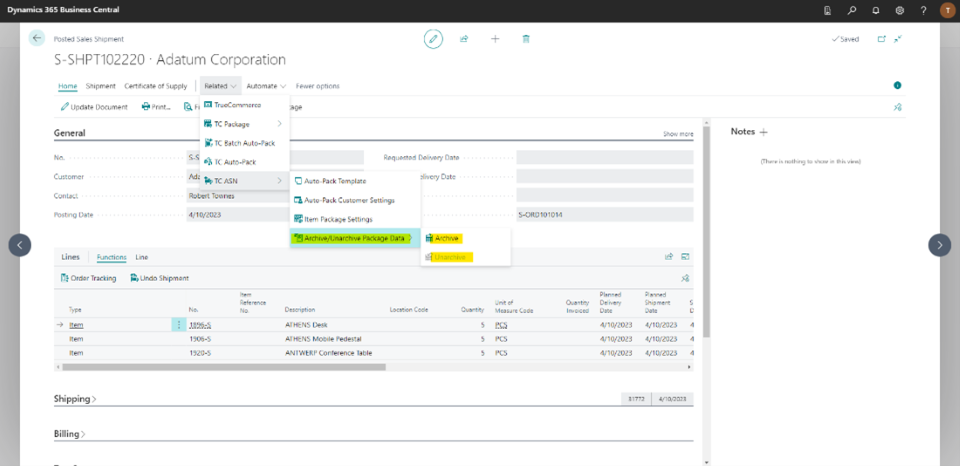
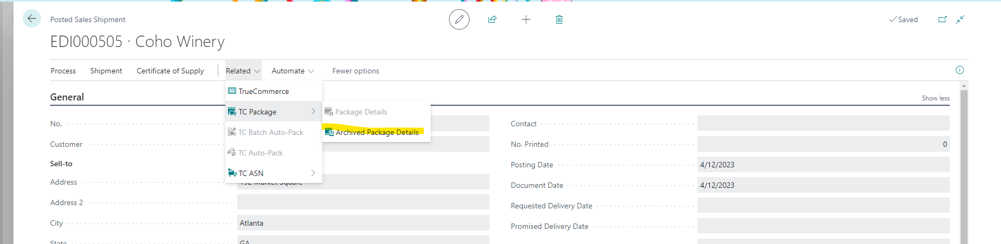
- If the shipment has been archived, you can go to the Archived Packages to view the package details of current shipment.
- To view the package details of an archived package, click on the Package ID.
What's next? Go to Warehouse Shipment
Warehouse Shipment
Expand User-Defined Field (UDF) support for Warehouse Shipments.
TrueCommerce
TC User-Defined Fields and TC Revision have been added to Warehouse Shipments.
| Fields | Description |
| TC UDF (1-5) | Any additional information sent in the Inbound Warehouse Stock Transfer Receipt Advice that is pertinent to your business can be stored in these UDFs. |
| TC Revision | This UDF is used to maintain/track the Warehouse Shipment revision number to be used when sending the Warehouse Shipping Order to the Warehouse. |
What's next? Go to Warehouse Receipt
Warehouse Receipt
Support the Transport Booking import from the Warehouse Receipt (Purchase Order, Transfer Order).
Shipping (TrueCommerce)
The Shipping (TrueCommerce) section is added to the Warehouse Receipt with the extension update.
| Fields | Description |
| TC External Document No. | Use this user-defined field to enter the external Document No. |
| TC Shipment Date | Use this user-defined field to enter the Shipment Date. |
| TC Shipping Agent Code | Use this user-defined field to select the Shipping Agent code. |
| TC Shipping Agent Service Code | Use this user-defined field to select the Shipping Agent Service code. |
| TC Shipment Method Code | Use this user-defined field to select the Shipment Method. |
TrueCommerce
TC User-Defined Fields and TC Revision have been added to Warehouse Receipts.
| Fields | Description |
| TC UDF (1-5) | Any additional information sent in the Inbound Transport Booking that is pertinent to your business can be stored in these UDFs. |
| TC Revision | This UDF is used to maintain/track the Warehouse receipt revision number to be used when sending the Transport Booking to the Warehouse. |
What's next? Go to TC ASN
TC ASN
The Posted Sales Shipment TC ASN drop-down selections include TC Auto Pack Template, TC Customer Settings, TC Item Package Settings and TC Archive/Unarchive Package Data.
TC Autopack Template
Auto Pack templates allow you to define special packaging rules that can then be assigned to Dynamics 365 Business Central customers. You can define packaging rules by Pack Quantity, and can set rules to package multiple items to a carton. As many auto pack templates can be created as preferred. Prior to packaging the shipments, these templates need to be defined for the customer under Navigate | TC ASN | TC Customer Settings within the Posted Sales Shipment module.
Dynamics 365 Business Central uses the Package No. value to determine whether items should be packaged together; for example, if two 1896-S items and one 1900-S item will fit in a single package, but 20000 must be shipped in its own package, a template could be created as shown, below.
| Fields | Description |
| Template No. | Name of the template. |
| Item No. | Item number from Dynamic 365 Business Central. |
| Quantity | Maximum quantity to be packaged within each package. |
| Package No. | Use the same or unique package numbers to indicate what items (if any) should be packaged together. |
| Unit of Measure | This field's content is pulled from the Sales Unit for the item set in Dynamic 365 Business Central. |
TC Customer Settings
The Customer Settings window provides you with the ability to assign an Auto-Pack Template (created on the Auto Pack Template page) to specific customer(s) to be used when creating packages for Shipments.
| Fields | Description |
| Customer No. | The specific customer number to which the template will be assigned. |
| Customer Name | The specific customer name to which the template will be assigned. |
| Template No. | The template to be applied to the customer. |
| ASN Type | Includes the No Pack, Pick and Pack, Standard, Pallet Pick and Pack, and Pallet Standard options. |
| Item Remainder | Select Yes for AutoPack to pack the item, even if the item does not fully pack the container. Otherwise, select No to exclude the item and cancel the package creation. |
| Disable Lot/Serial No. Auto Assignment | Specifies if the lot or serial number(s) will be automatically assigned when packing the shipment. |
TC Item Package Settings
You can define the Pack Quantity for each Dynamics 365 Business Central item that will be ordered and packaged for your trading partners on the Item Package Settings page. The Pack Quantity represents the total quantity of an item that fits into a package. This value will be used for all customers when packaging shipments. If a customer has different packaging rules, an Auto Pack Template will need to be set up for each customer that is unique. The TC Package Settings list can be filtered by entering an Inventory ID in the text box, or by clicking on the magnifying glass and selecting an item.
| Fields | Description |
| Item No. | The unique Item number from Dynamics 365 Business Central. |
| Description | The item description from Dynamics 365 Business Central. |
| Quantity | The maximum quantity to be packaged within each package. |
| Type | The item type from Dynamics 365 Business Central. Type values include Inventory, Service, and Non-Inventory. |
TC Archive/Unarchive Package Data
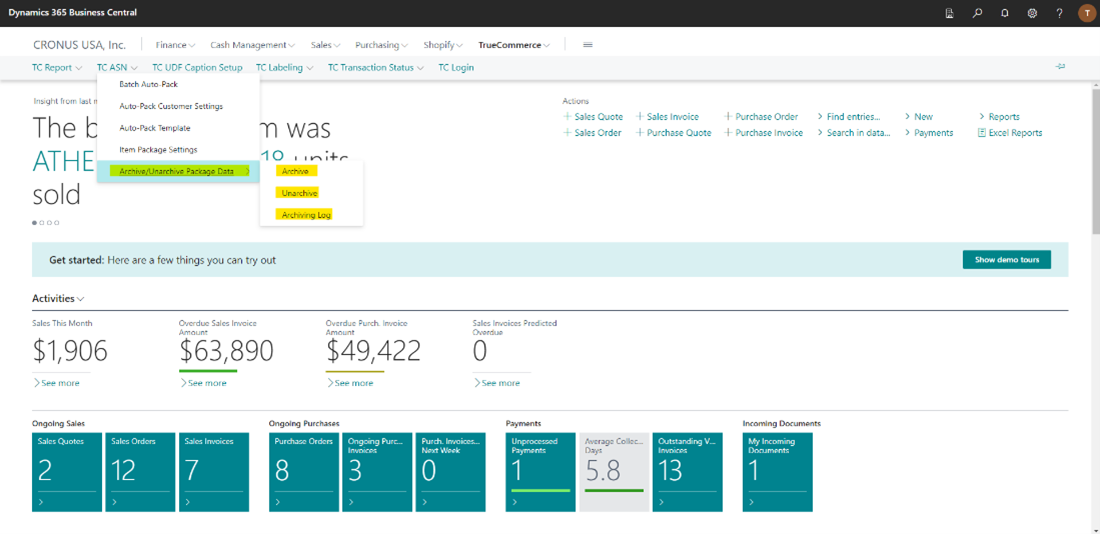
The Archive/Unarchive Package Data drop-down selections include Archive, Unarchive and Archiving Log.
- True Commerce>TC ASN>Archive/Unarchive Package Data>Archive
- True Commerce>TC ASN>Archive/Unarchive Package Data>Unarchive
- True Commerce>TC ASN>Archive/Unarchive Package Data>Archiving Log
TC Archive Package Data
The Package Archive window provides you with the ability to archive ASN/Package Detail data to limit the data we are searching when importing ASNs.
This page enables users to filter any shipments, then execute immediately or schedule the process of package data archive for those shipments.
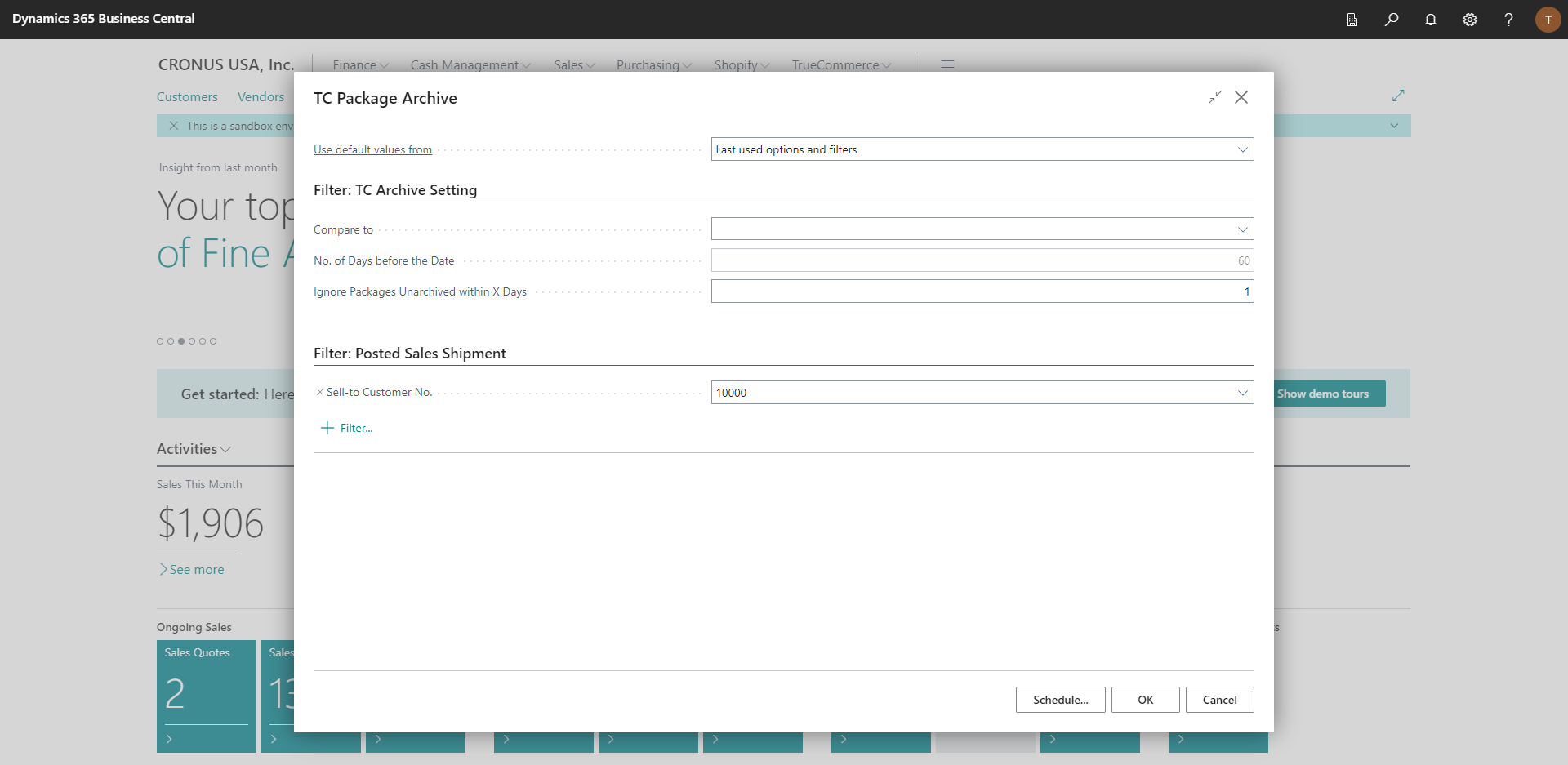
After you set the filters, you can click the "OK" button to execute the archive process immediately or click the "Schedule" button to create a job queue to run the process frequently in the future.
| Filter | Description |
| Compare to | Set to <blank> if you do not need to compare with any date fields, Document Date if you need to compare with the Shipment Document Date field," Posting Date if you need to compare with the Shipment Posting Date field. The default value is <blank>. Only Document Date or Posting Date will enable the next filter No. of Days before the Date. |
| No. of Days before the Date | Set how many days before the date field selected in the last filter Compare to. The default value is 60. |
| Ignore Packages Unarchived within X Days | Set to skip shipments that are unarchived within how many days. The default value is 1. (Default to skip unarchived shipments from yesterday to today.) |
| Sell-to Customer No. | Set which customers the shipments belong to. |
| + Filter... | Add other Available Fields in the shipment table to filter shipments accordingly. |
TC Unarchive Package Data
This page enables users to filter any shipments, then execute the process of package data unarchive for those shipments immediately.
After you set the filters, you can click the "OK" button to execute the unarchive process immediately. (The unarchive process is not designed to be scheduled; if this button is clicked, a message window will be shown.)
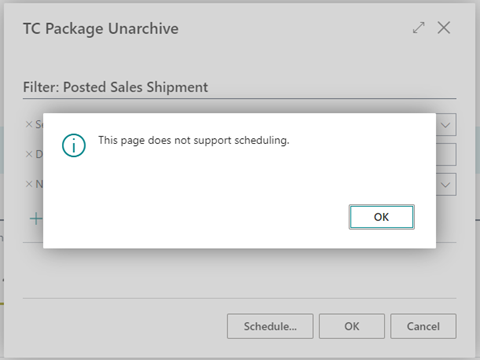
| Filter | Description |
| Sell-to Customer No. | Set which customers the shipments belong to. |
| Document Date | Set the document date for which the shipments were created. |
| No. | Set the Document No. of shipments. |
| + Filter... | Add other Available Fields in the shipment table to filter shipments accordingly. |
TC Archiving Log
This page enables users to trace the history of package data archive and unarchive. (Log data will be automatically deleted after 180 days.)
- To view log details of a shipment, please click Shipment Number.
- To view log details of a package, please click Package ID.
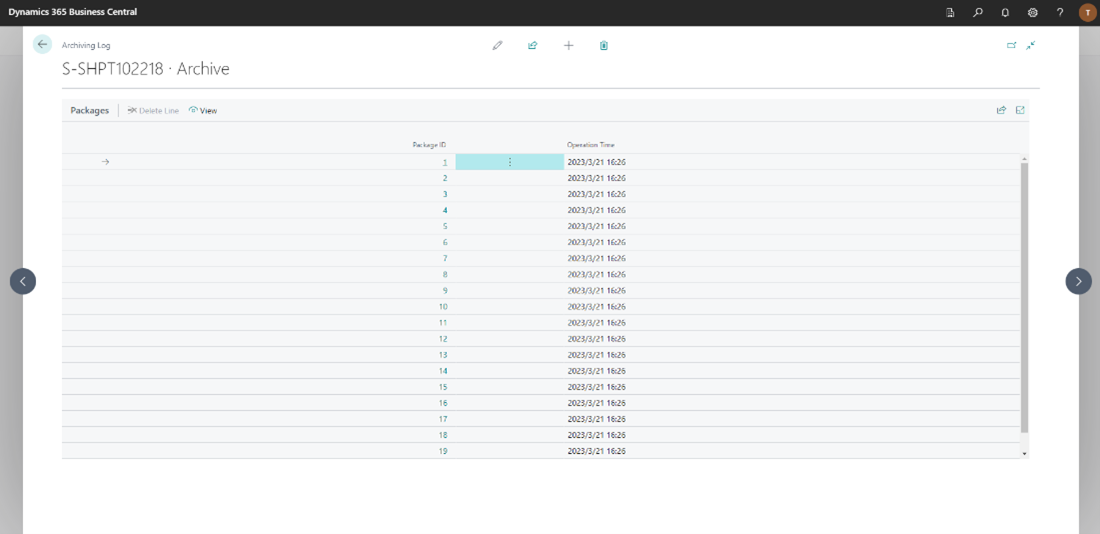
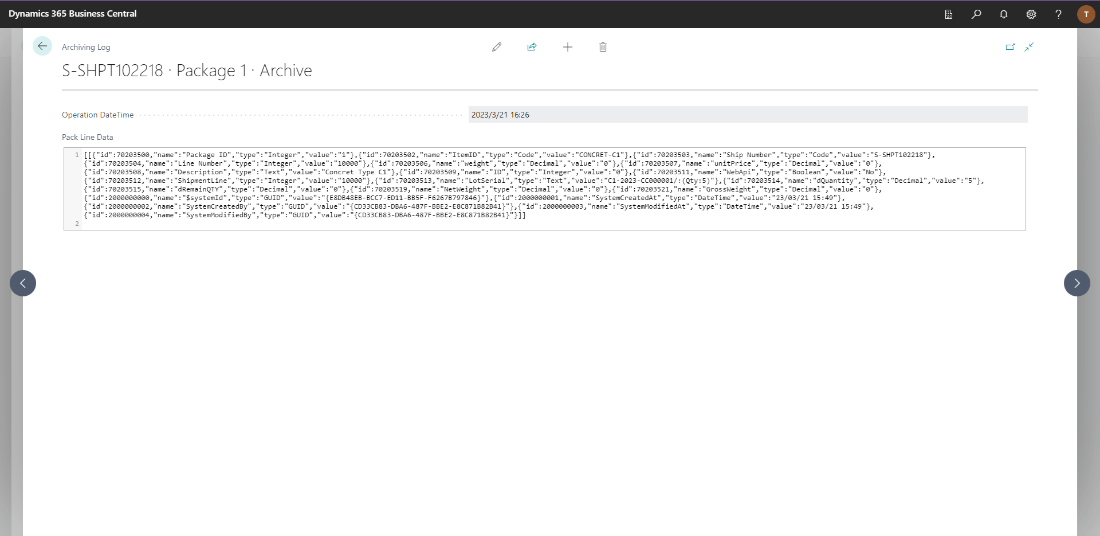
Remarks: If Pack Line Data is not shown, please go back and go into the page again or just refresh the page.
What's next? Go to TC AutoPack
TC AutoPack
When you have completed the TC ASN settings, you can select TC AutoPack to automatically pack the shipment, then select Navigate | TC Package Detail on the Posted Sales Shipment to view packages that were created by AutoPack. TC Package Detail provides you with a means to view, add, edit, or delete package details on the TC Package Details page.
The TC AutoPack Template in Dynamics 365 Business Central provides a means for the user to create new shipping templates and to edit and search existing templates. It also provides for custom package rules to be created based on mixed carton or pure carton. The user must then associate the AutoPack template to a Dynamics 365 Business Central customer, ensuring that contents are packed in the manner required for the customer.
TC Package Detail
The TC Package Detail page will display the TC Package Line information in a grid format.
| Fields | Description |
| Package ID | ID for the current package in Dynamics 365 Business Central. |
| Item Line Number | The Item line number for the line specified within the current shipment in Dynamics 365 Business Central. |
| Item ID | The unique Item ID for the item in Dynamics 365 Business Central. |
| Description | The Item description in Dynamics 365 Business Central (manual entry field). |
| Quantity | The quantity of items in the current package. |
| Lot/Serial | For lot/serial item(s), this field will automatically display which lot or serials have been assigned to the current item(s). |
What's next? Go to TC UDF Caption Setup
TC UDF Caption Setup
TrueCommerce has user-defined fields (UDFs) that can be carried over from the Inbound Purchase Order to the Sales Order and UDFs on the vendor Purchase Orders that can be carried over to the Posted Purchase Receipts and Posted Purchase Invoices.
The TC UDF Caption Setup window in Dynamics 365 Business Central provides a means to set dynamic captions for the TC UDF 1-10 fields at the Sales Header and Sales Line, TC Date 1-5 fields at the Sales Header, and the TC UDF 1-5 fields at the Purchase Header and Purchase Line.
| Fields | Description |
| Document Type | This indicates if the field is in the Sales or Purchase area of the system. |
| Field Type | This indicates if the field is a header or line field. |
| TC Field Name | This shows the standard TC field name displayed within the user interface and field name in the tables. |
| Field Text | Enter the field display name you want to see within Dynamics 365 Business Central. |
Note
These changes only impact the user interface. The field names in the data tables are not updated. Active users must sign out and sign back in to see the changes.
What's next? Go to TC Report
TC Report
The TrueCommerce Activity Report displays the Pulse Dashboard after you log in to the Foundry platform.
TC Report Dashboards
| Fields | Description |
| Dashboard Name | This field represents the Pulse Dashboard Name. |
TC Report Settings
| Fields | Description |
| No. | This read-only, auto-generated field represents the primary key in the data table. |
| Dashboard Name | This field represents the Pulse Dashboard Name. |
| Company Name | This field represents the Company Name from Pulse. |
| Product Name | This field is the product in Pulse/Key Performance Indicators (KPIs) that are used to indicate the data source. |
Note
For the purpose of TrueCommerce embedded analytics, Product Name should always be 'TM' to match the product in the KPI package delivered for Pulse.
What's next? Go to TC Transaction Status
TC Transaction Status
Support is added to provide visibility within Dynamics 365 Business Central to see when documents have been sent to the Trading Partner.
- Warehouse Shipping Order (940)
- Purchase Order Acknowledgement (855)
- Advanced Ship Notice (ASN/856)
- Invoice/Posted Invoice (810)
- Purchase Order (850)
- Purchase Order (943)
| Fields | Description |
| Warehouse Shipping Order Status | UDF in the Sales Order to indicate the sent status of the Warehouse Shipping Order (940) in Transaction Manager. |
| Purchase Order Acknowledgement Status | UDF in the Sales Order to indicate the sent status of the Purchase Order Acknowledgement (855) in Transaction Manager. |
| Advanced Ship Notice Status | UDF in the Posted Sales Shipment to indicate the sent status of the Advance Shipping Notice (856) in Transaction Manager. |
| Invoice Status | UDF in the Sales Invoice to indicate the sent status of the Invoice (810) in Transaction Manager. |
| Posted Invoice Status | UDF in the Posted Sales Invoice to indicate the sent status of the Posted Invoice (810) in Transaction Manager. |
| Purchase Order Status | UDF in the Purchase Order to indicate the sent status of the Purchase Order (850) in Transaction Manager. |
| Purchase Order (943) Status | UDF in the Purchase Order to indicate the sent status of the Purchase Order (943) in Transaction Manager. |
TC Foundry Login
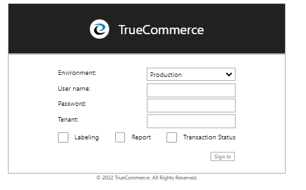
Users must connect their Dynamics 365 Business Central to the Indicator API and Foundry using their Foundry user credentials.
- True Commerce>TC Login
- Select the Environment(Should be set to Production unless something is being tested in Staging).
- Enter Foundry User Name.
- Enter Foundry Password.
- Enter Tenant.
- Select Transaction Status.
- Click Sign in.

Transaction Status Settings
- TrueCommerce>TC Transaction Status>Transaction Status Settings
- Enter the value for Query Docs within X days (The default is to go back 60 days).
- Update Transaction Status (Default Unchecked): If checked, the job queue will first clear up all the transactions sent dates/times and then re-update all document sent statuses.
- Enable each document for which you want to see the Transaction Status.

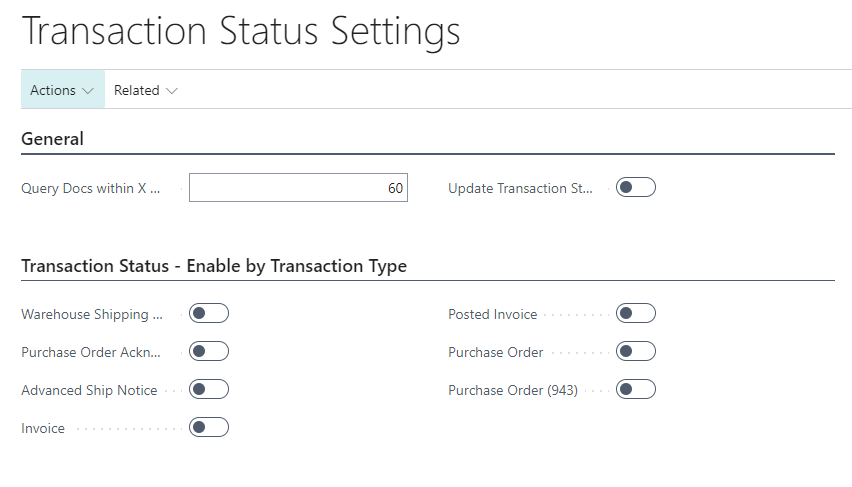
Create the Job Queue
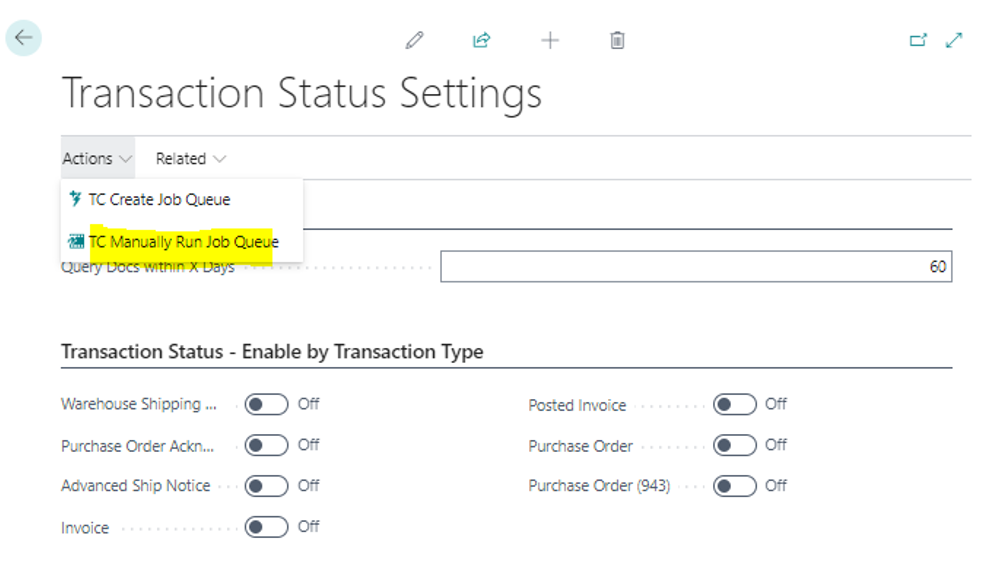
- Transaction Status Settings>Actions>TC Create Job Queue
- The below pop-up will display. Click Yes to set up the Scheduler.
- Once the parameters are set, select Process > Set Status to Ready.
- The job queue will run based on the settings.
- Note: We are using the standard Dynamics 365 Business Central Job queue process.
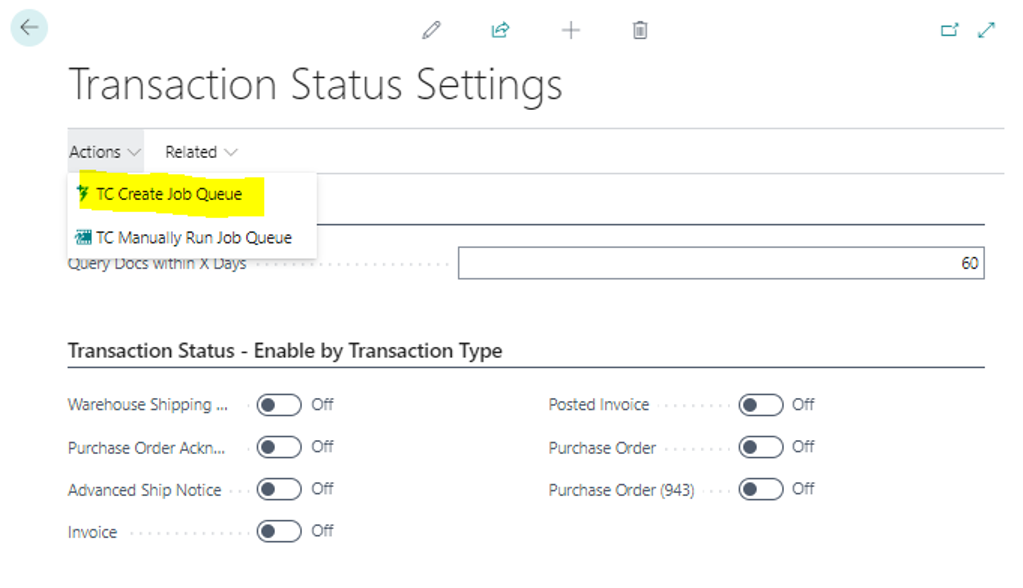
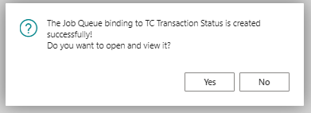
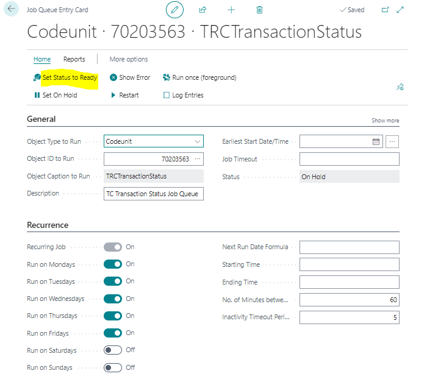
How to manually run the job queue
- Transaction Status Settings>Actions>TC Manually Run Job Queue
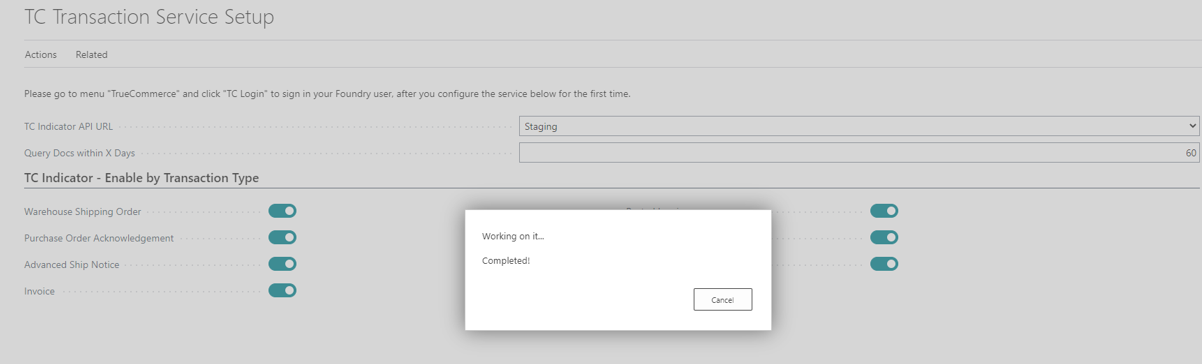
- After you manually run the job queue, the following pop-up will display.
- For any transactions that have been sent within Transaction Manager, the TC status will be updated on corresponding transaction(s) once the job runs.
Viewing Job Queue Entries
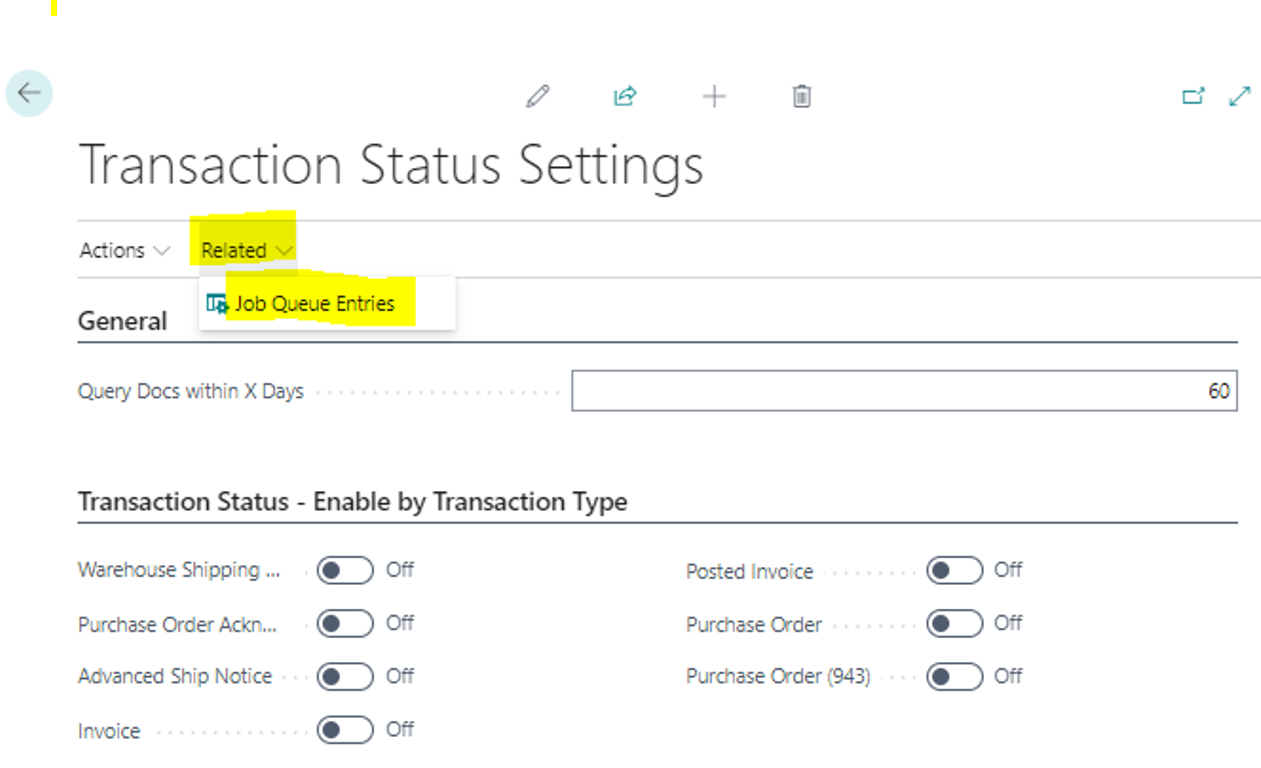
- Each time the job queue is run a record will be entered in Log Entries: Transaction Status Settings > Related > Job Queue Entries
- Each time the job queue is run a record will be entered in Log Entries. A user can click Log Entries from the Job Queue entries window.
- If a job has an error, click the error record, then click Show Error.

What's next? Go to TC Labeling
TC Labeling
- Leveraging the TrueCommerce Label API, we have added the capabilities to print labels from Dynamics 365 Business Central.
- The same labels printed from Transaction Manager are utilized.
| Fields | Description |
| Ship-from Address Fields (Name, Address1...) | The Ship From Address can be set when creating the sales order during the Purchase Order (PO) Export from Transaction Manager. It will be brought to the Posted Sales Shipment from the sales order. |
| Labeling (Label Partner, Label Template) | During the Sales Order creation, it is possible to pass these values in when exporting a Purchase Order from Transaction Manager. It will be brought to the Posted Sales Shipment from the sales order. |
Setup
In order to print GS1-128 labels, the following criteria must be set for each customer in Dynamics 365 Business Central:
- Trading Partner and Template
- Ship From Address
- GS1-128 Numbering
- Option – Field mapping to override the default
Prerequisites:
- The customer must have the latest Dynamics 365 Business Central Extension.
- Transaction Labeling SKU – you can verify it via the PSD Tool.
TC Foundry Login
Users must connect their Dynamics 365 Business Central to the API and Foundry using their Foundry user credentials.
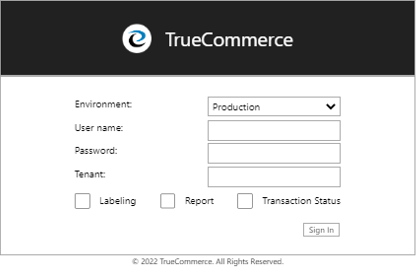
- True Commerce>TC Login
- Select the Environment (Should be set to Production unless something is being tested in Staging).
- Enter the Foundry User Name.
- Enter the Foundry Password.
- Enter the Tenant.
- Select Transaction Status.
- Click Sign in.
- We will check the user SKU permission and obtain all of the trading partner names and templates for the customer’s tenant based on their login (The customer must have the labeling SKU as part of their Transaction Manager instance).

General settings
TrueCommerce>TC Labeling>Labeling Settings
- General
- Set your label page size (Labels are split into batches of a maximum of 100 labels per PDF).
- Set if you want to have Label Tracing Log On or Off.
- Set the number of days within which to log.
- TC GS1-128
- The TC GS1-128 settings are used to generate pack level and pallet level GS1-128 numbers when creating packages for shipments.
- You must set the GS1-128 number for each customer.
- the customer must know their company number.
- If not set at the customer level, it will default from the company setup.
- TrueCommerce>TC Labeling>Labeling Settings
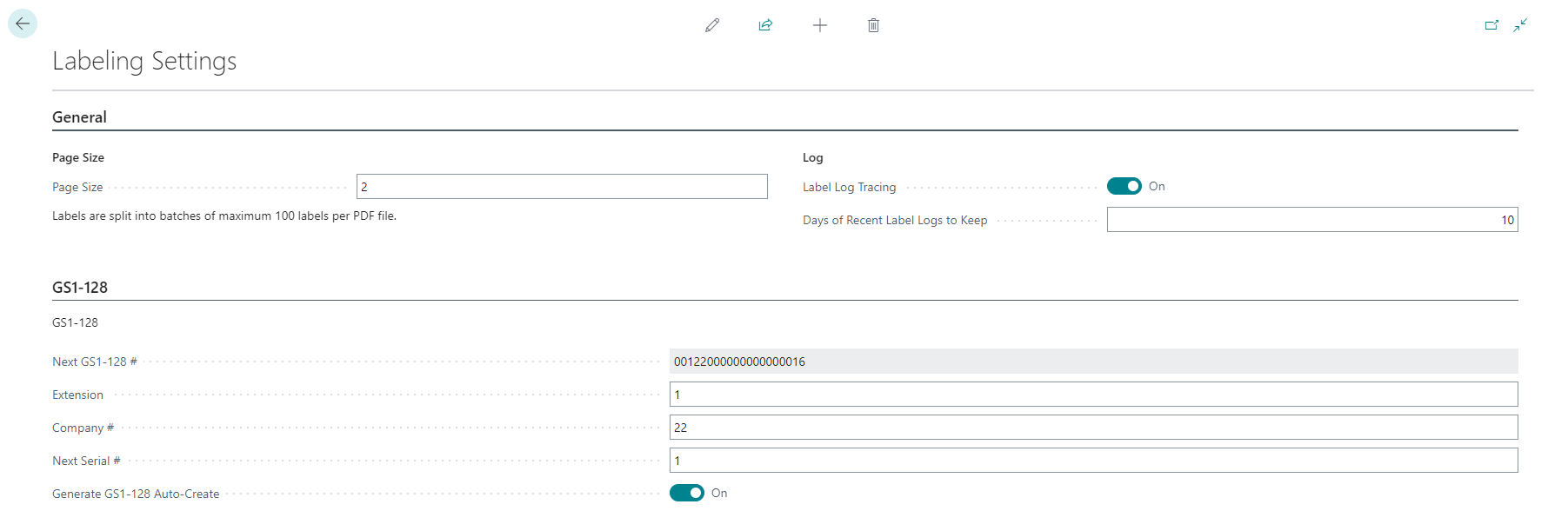
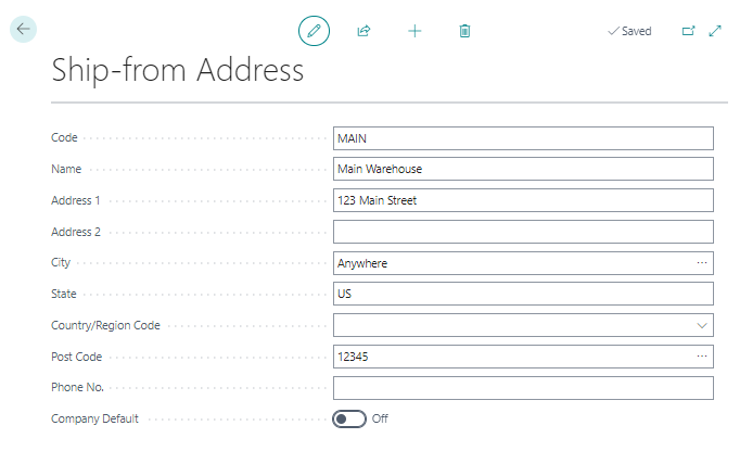
TrueCommerce>TC Labeling>Ship-from Address
- Ship-from Address
- A Ship-from Address must be set in order to publish on the label.
- There is also an option to set at the customer level to use the Ship-from Address from the location on the shipment.
- This has lower priority than the ship-from address that can be set on the customer settings page.
- If no Ship-from Address is set for a customer, the Ship-from Address set here will be used as the default address.
- You can set a company default.
Labeling Customer Settings
- The following settings must be set for each customer in order to print labels.
- The label partner and template populate based on the customer having the trading partner and label template deployed to their Transaction Manager instance.
- Default Label Partner
- Default Label Template
- Default Ship-From Address
- TC GS1-128
- During Sales Order creation it is possible to pass these values in when exporting a Purchase Order from Transaction Manager.
- Accessing Labeling Customer Settings
- True Commerce>TC Labeling>Labeling Customer Settings
- This is also accessible via the Customer Card>Related>TC Customer Settings
- This is also accessible via the Actions>TC Labeling>Labeling Customer Settings in TC Package List
- Select a customer.
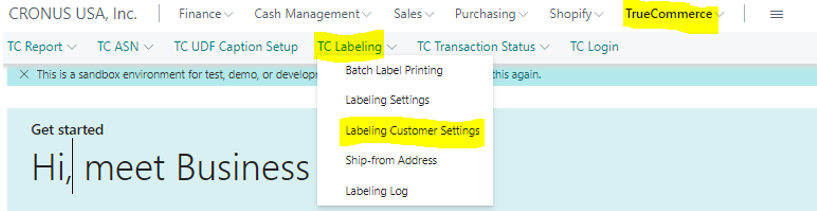
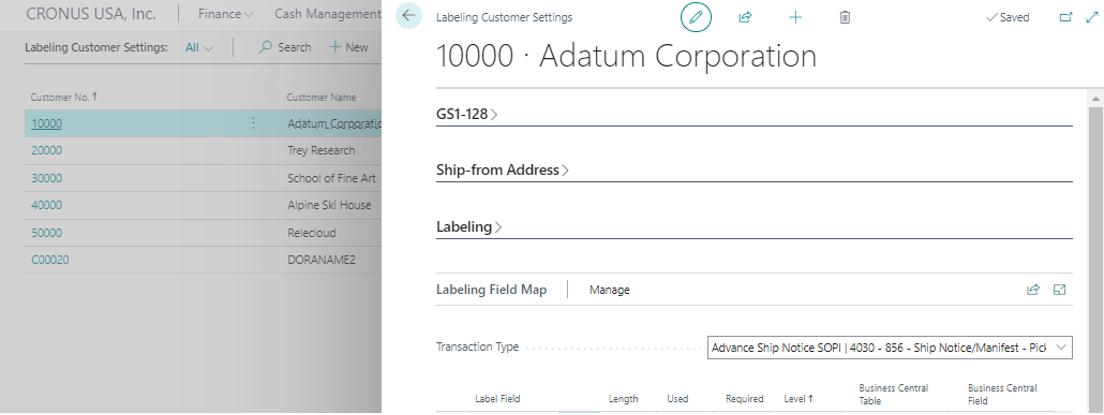
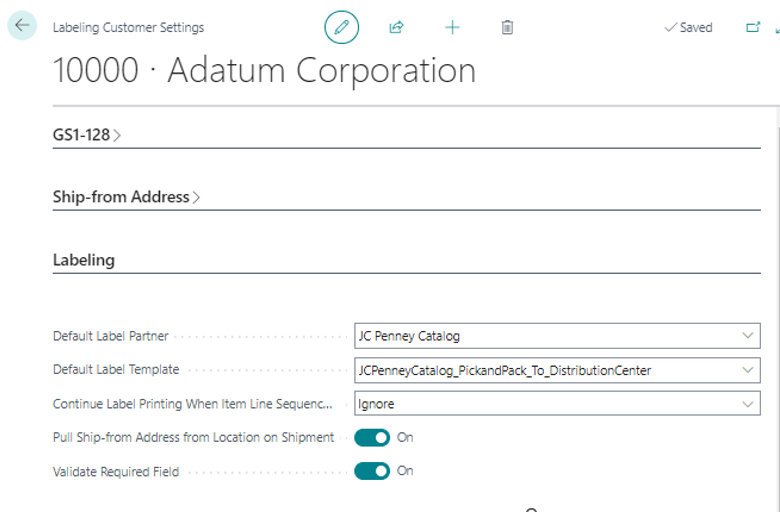
- Default Label Partner and Default Label Template
- The partner and template selected here will be used as the default values when creating a sales order.
- When the Label Partner/Label Template are not passed on the purchase order export or when creating a sales order manually, the Label Partner/Label Template will be pulled from the customer settings if they have been defined there. If they have not been set, the TC Label Partner/TC Label Template will remain <blank> in the sales order.
- The Label Partner/Label Template will be carried over from the sales order to the posted shipment.
- Ship-from Address
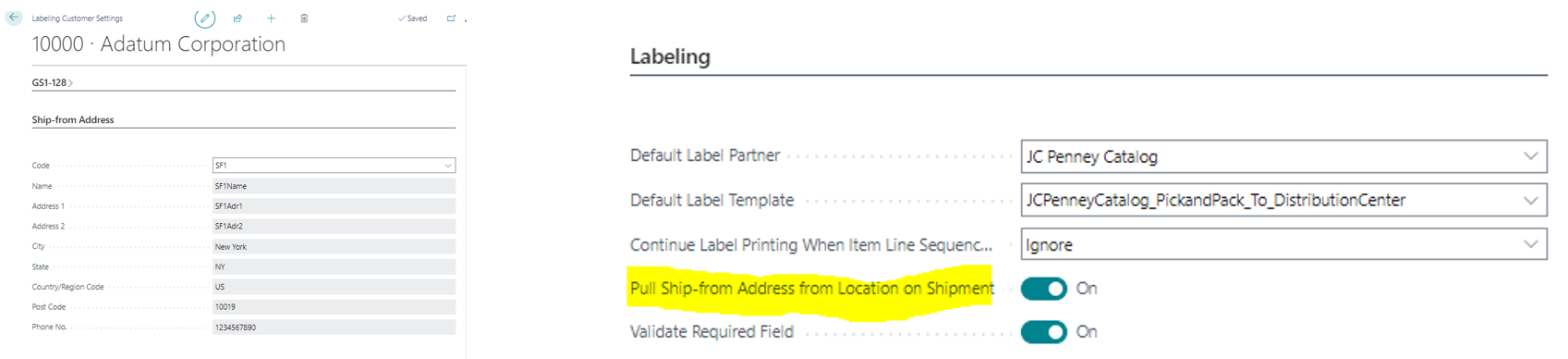
- You must specify for the customer what address will print on the labels as the Ship-from Address.
- The Ship-from Address set here will be used on the label as the default Ship-from Address.
- If no Ship-from Address is set for a customer, the Ship-from Address at the company setup will be used as the default address.
- There is also an option to set at the customer level to use the Ship-from Address from the location on the shipment.
- If this is set, we will use the address from the Location on the Posted Sales Shipment.
- If this is not set, we will use the TC Default Ship-from Address set on the TC Customer Template.
- If there is no value set at on the TC Customer Template we will use the company default.
- The Ship-from Address can be set when creating the sales order during the PO export from Transaction Manager.
- TC GS1-128
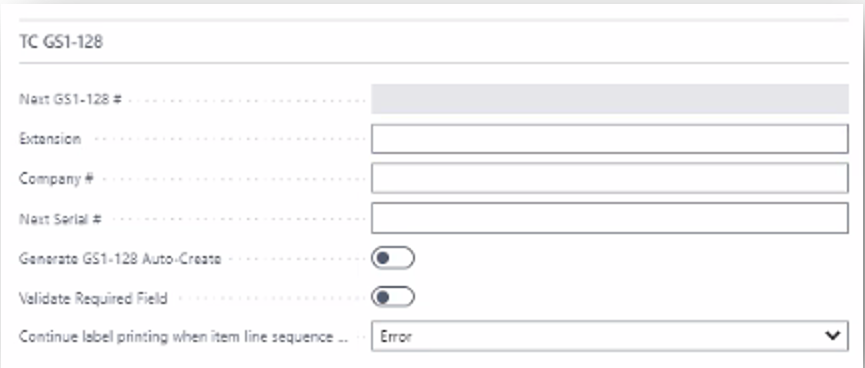
- The TC GS1-128 settings are used to generate pack level and pallet level GS1-128 numbers when creating packages for shipments.
- You must set the GS1-128 number for each customer.
- Note: The customer must know their company number.
- Auto Generate Pack Level GS1-128
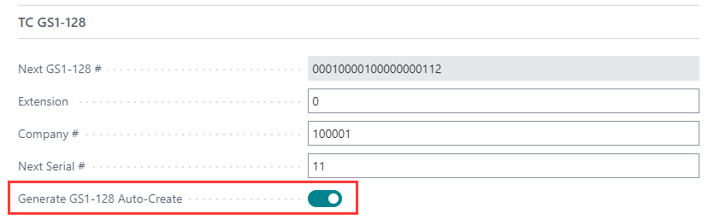
- We will generate pack level GS1-128 numbers automatically when a customer auto packs or batch auto packs for shipment(s) if the “Generate GS1-128 Auto-Create” is ON. This is set at the customer level alongside the GS1-128 number.
- With Generate GS1-128 button, not only package GS1-128 will be generate, Pallet GS1-128 will also be generated if user has assigned Pallet ID for the package.
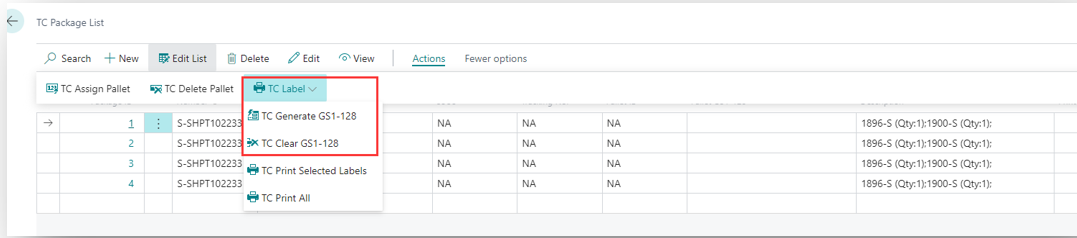
- The customer can also re-autogenerate all the pack level GS1-128 numbers by clicking the “TC Generate GS1-128” submenu. Meanwhile, they can clear all the pack level GS1-128s by clicking “TC Clear GS1-128”.
- The “TC Generate GS1-128” submenu is visible only when the “Generate GS1-128 Auto-Create” is indicated as ON for this customer on the customer settings page.
- With Clear GS1-128 button, both package GS1-128 and Pallet GS1-128 will be cleared.
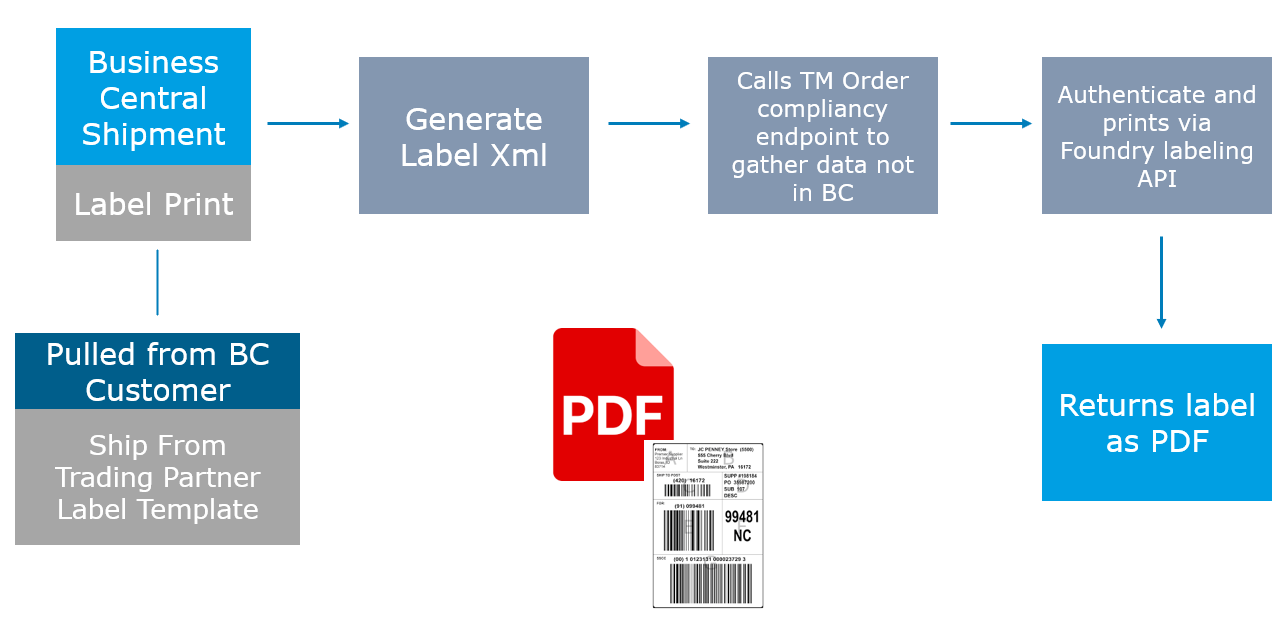
Label Flow and Field Mapping
- Label Generation
- The Label function from Dynamics 365 Business Central will produce the same Xml request Xml that Transaction Manager does for the Labeling API.
- There is added functionality to Dynamics 365 Business Central that will allow the user to override the default label mapping.
- In addition, there is added functionality to retrieve compliancy data from the originating order in Transaction Manager.
- During the label request, the logic will retrieve the same Xml from Transaction Manager from the order and take values that are on the order but are null on the label request from Dynamics 365 Business Central.
- This prevents us from having to store compliancy data within the ERP.
- Note: This process allows for lookups to be used during the process of retrieving compliancy data from the order, if necessary.
- Line level - We will match the line item based on the line number from the order which will be stored in Dynamics 365 Business Central in a new user-defined line sequence field.
- Label Workflow
- TC Label Field Changes
- With the ability to print labels from within Dynamics 365 Business Central we will still use the default Transaction Manager label templates.
- There is added functionality to Dynamics 365 Business Central that will allow the user to override the default label mapping.
- In addition, there is added functionality to retrieve compliancy data from the originating order in Transaction Manager.
- We have added an option to customize field mapping at the customer level.
- Note: any changes you make to the labels could impact compliancy with your trading partner.
- Fields you set here will overwrite the default.
- The option allows for you to set fields at each level of the labeling Xml.
- Customer Labeling
- TrueCommerce>TC Labeling>Labeling Customer Settings.
- This is also accessible via the Customer Card>Related>TC Customer Settings.
- This is also accessible via Actions>TC Labeling>Labeling Customer Settings in TC Package List.
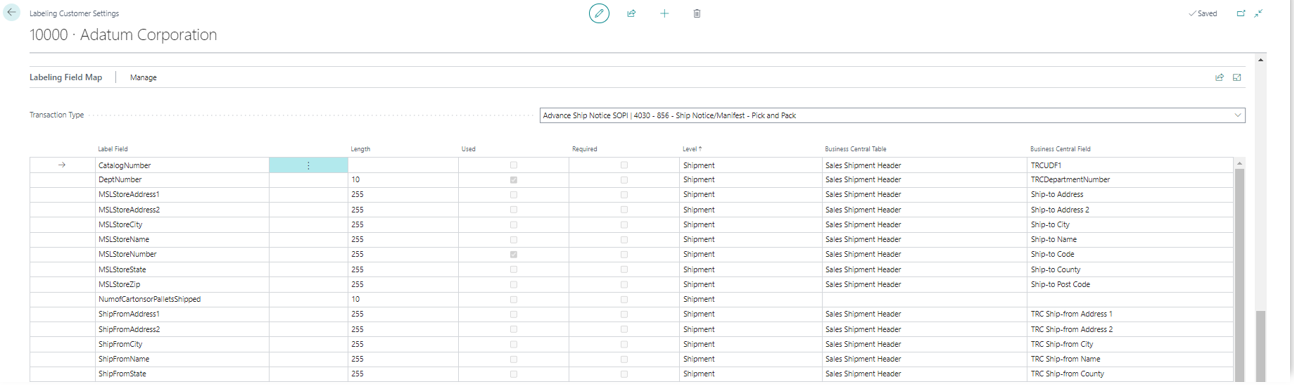
- Select the appropriate ASN Transaction Type to edit.
- User need to click on Manage -> Load Label Fields, in this case BC will call Label API to get label template variables (Label Fields), ASN Transaction Types which has setup import document type in TM and corresponding Misc token captions of that transaction type. Then insert into corresponding table in BC.
- The transaction type user select here should match the label template user select to get the correct Misc tokens.
- Customer Labeling – Labeling Field Map Manage Options
- TrueCommerce>TC Labeling>Labeling Customer Settings>Manage
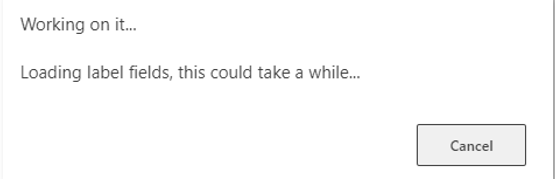
- Load Label Fields(You will see a message that the system is working on it).
- If no mapping : label fields in corresponding template user select for “Label Default Template” will be loaded.
- If mapping exists : Nothing would be changed unless there are any changes made to label template/import document type setup/Misc token mapping.
- Load BC Fields
- With this button, any changes to BC Tables/BC Fields will be refreshed
- Label Preview
- Print Labels
- The Label function from Dynamics 365 Business Central will produce the same Xml request Xml that Transaction Manager does for the Labeling API.
- There is added functionality to Dynamics 365 Business Central that will allow the user to override the default label mapping.
- In addition, there is added functionality to retrieve compliancy data from the originating order in Transaction Manager.
- During the label request, the logic will retrieve the same Xml from Transaction Manager from the order and take values that are on the order but are null on the label request from Dynamics 365 Business Central.
- This prevents us from having to store compliancy data within the ERP.
- Note: This process allows for lookups to be used during the process of retrieving compliancy data from the order, if necessary.
- Line level - We will match line item based on the line number from the order which will be stored in Dynamics 365 Business Central in a new user-defined line sequence field.
Printing labels
- Auto generate GS1-128
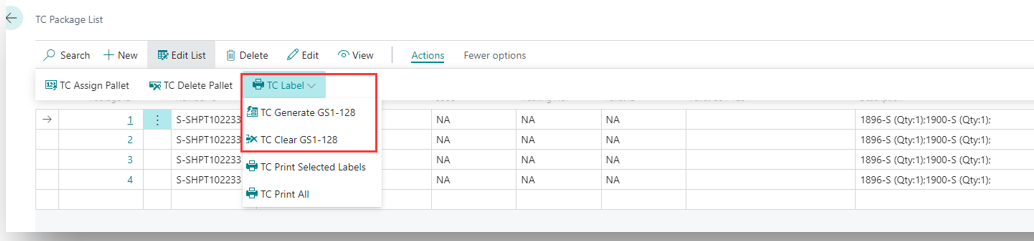
- Customers can also re-autogenerate all the pack level GS1-128 numbers by clicking the “TC Generate GS1-128” submenu. Meanwhile, they can clear all the pack level GS1-128s by clicking “TC Clear GS1-128”.
- The “TC Generate GS1-128” submenu is visible only when the “Generate GS1-128 Auto-Create” is indicated as ON for this customer on the customer settings page.
- Auto generate Pallet GS1-128
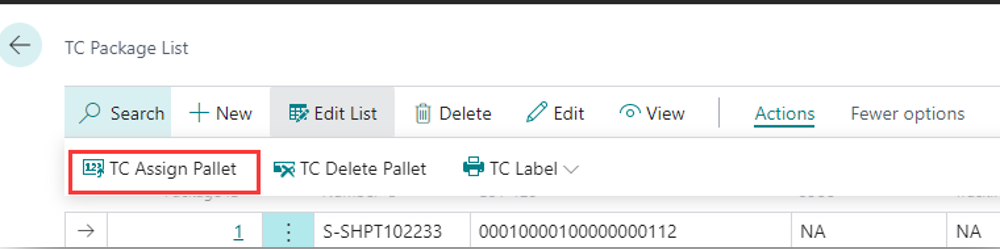
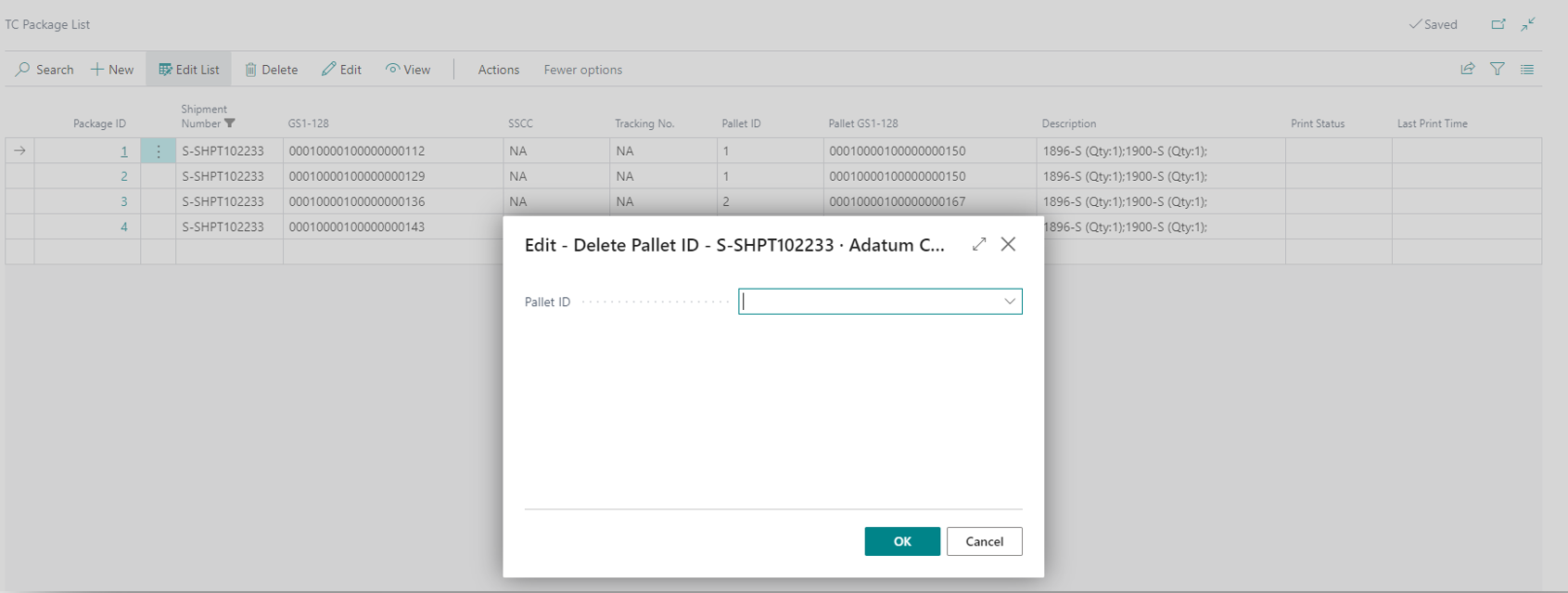
- Customers can generate pallet level GS1-128 numbers automatically when assigning pallet to multiple packages if “Generate Pallet GS1-128 #” is ON for this customer in customer settings page.
- Pallet level GS1-128 will be regenerated together with package level GS1-128 by clicking the “TC Generate GS1-128”, as well as being cleared together with package level GS1-128 by clicking the “TC Clear GS1-128”.
- When a pallet ID is deleted, the pallet GS-128 will be deleted as well.
- Printing Labels from Business Central Shipment – TC Package List
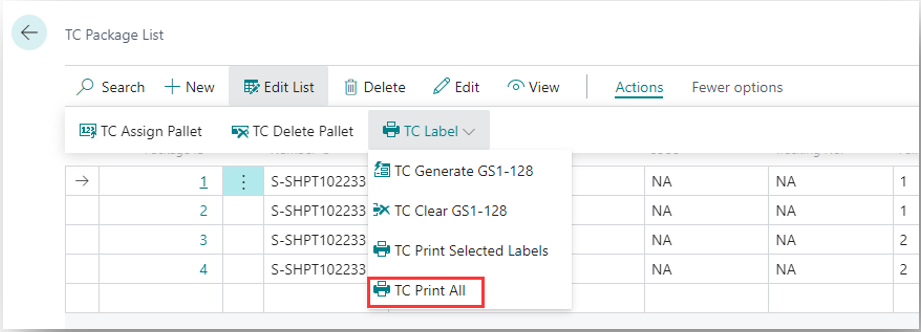
- TC Package List
- Actions>TC Label
- TC Print All
- TC Print Selected Labels
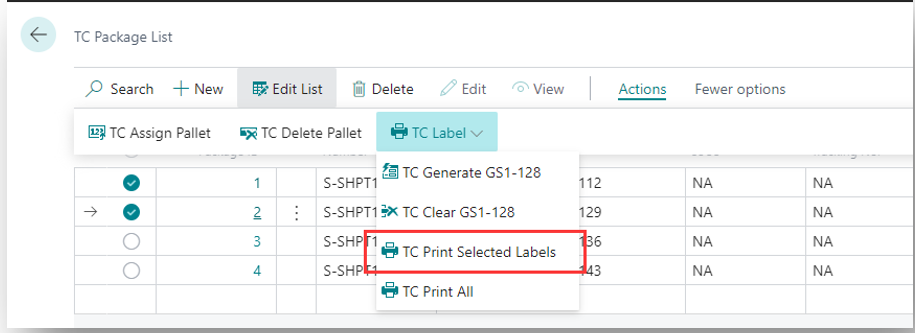
- Printing Labels
- TC Package Detail
- Actions>TC Label>Print Current Label
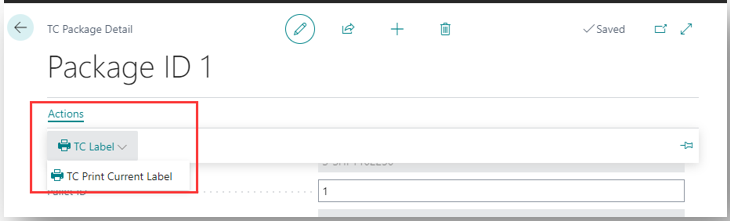
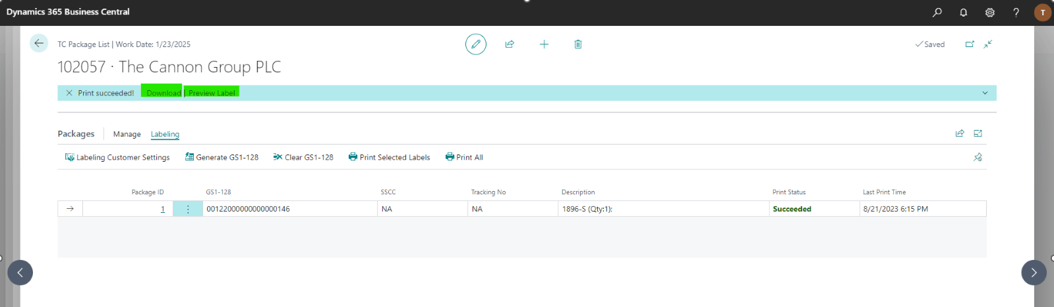
- Printing Labels Completed
- The TC Package list is updated once labels have been printed.
- There is a print status and last print time column will be refreshed.
- A "Print Succeeded!” message will display with a Download button for the PDF file download, and a Preview Label button for label PDF preview.
- Clicking the “Preview Label” will navigate users to the PDF page.
- On the PDF page, users can preview labels before printing them.
- Clicking the Print button will cause the browser to launch the printer dialog for users to choose a proper one to print.
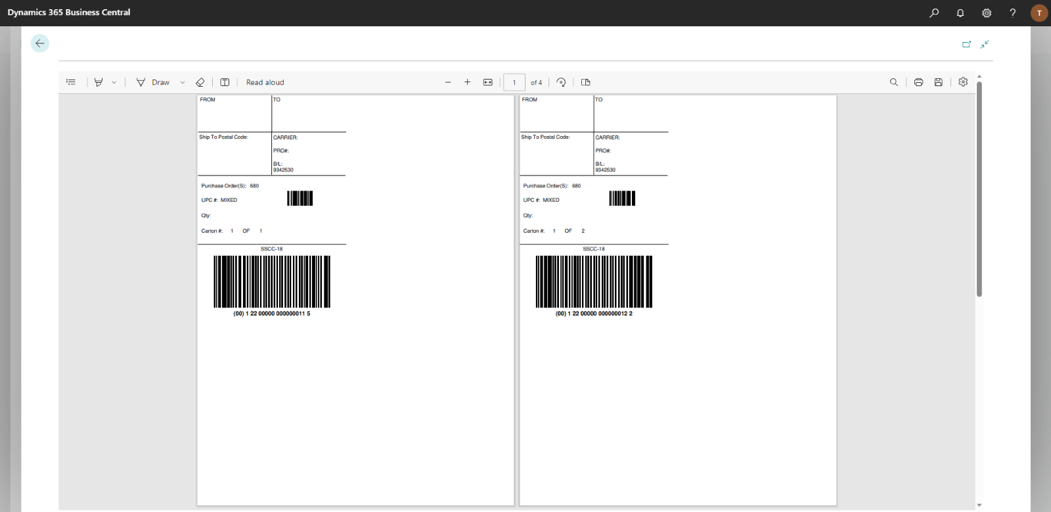
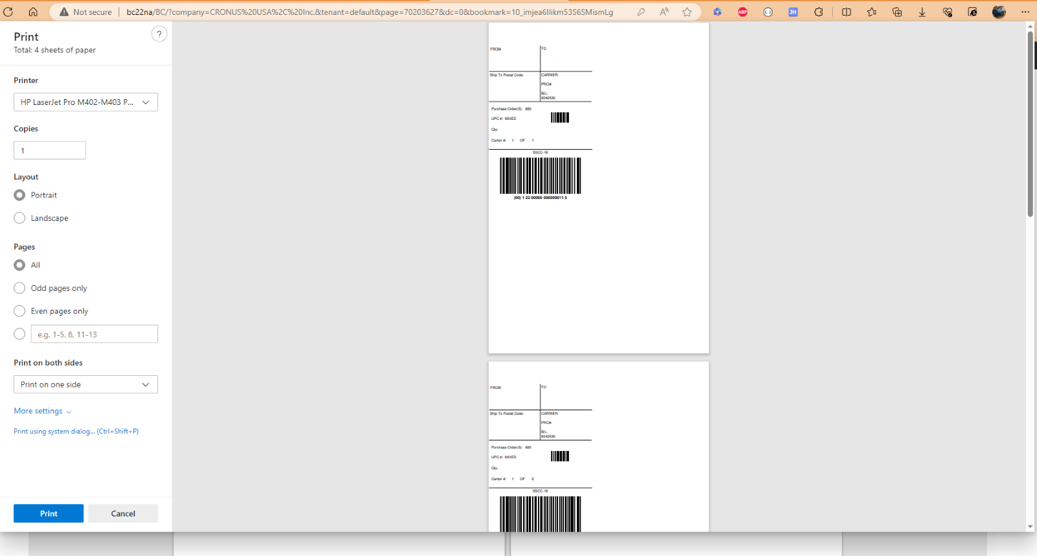
- Support is available to print labels for multiple shipments
- TrueCommerce>TC Labeling>Batch Label Printing
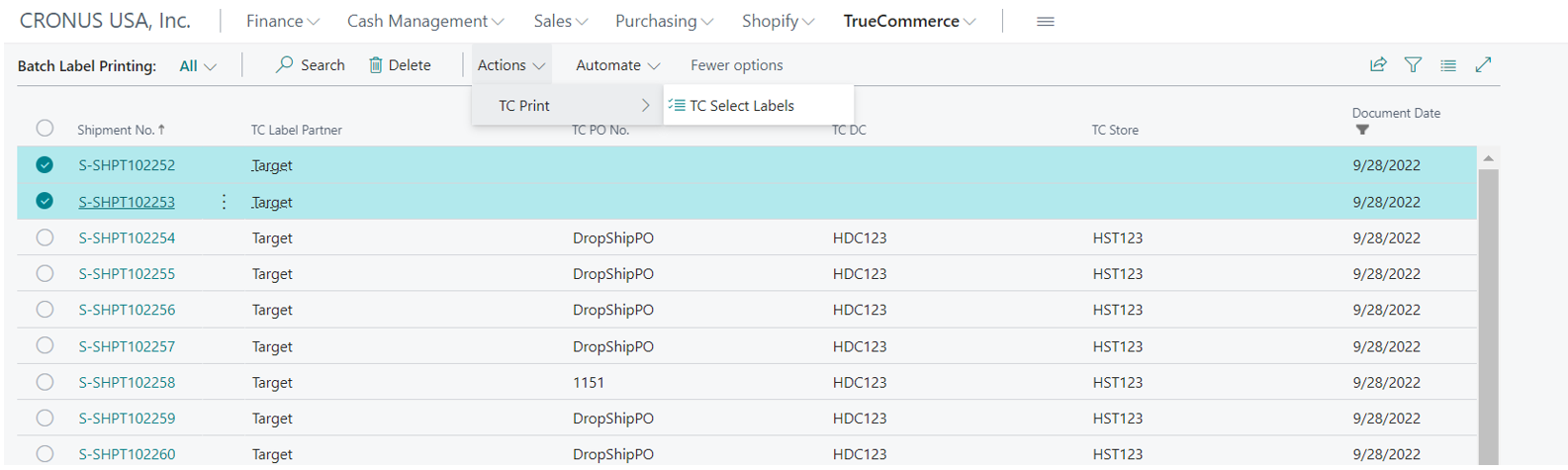
- A list of all posted shipments will be displayed.
- Using standard Dynamics 365 Business Central functions you can filter the search and select multiple shipments.
- Once selected, print labels via Actions > TC Print > TC Select Labels.
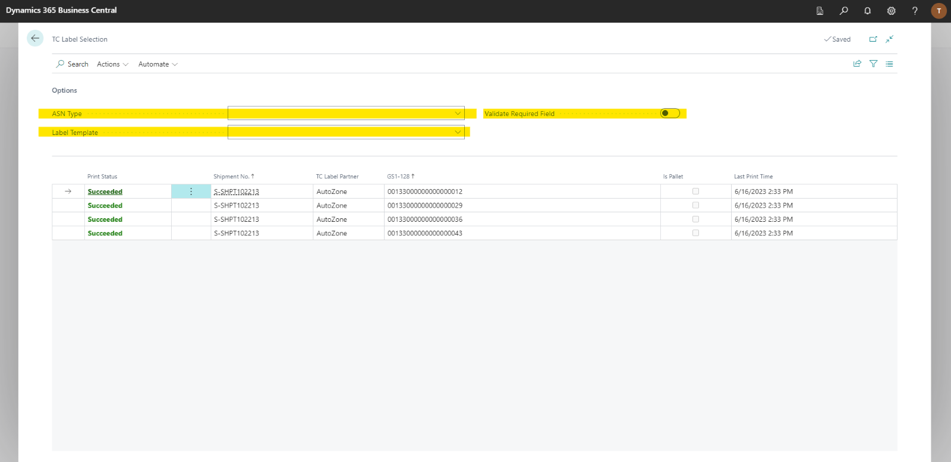
- There are 3 new options available in the Label Selection page.
- Option "ASN Type"
- If set up, labels xml will be generated in this structure and printed. Corresponding UDF in shipment will be updated as well.
- Available when only one partner's labels are selected.
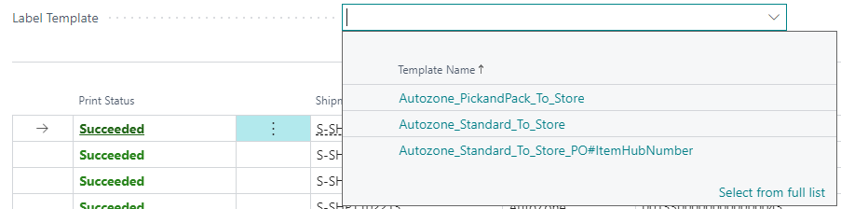
- Option "Label Template"
- If set up, labels will be printed based on this template. Corresponding UDF in shipment will be updated as well.
- Available when only one partner's labels are selected.
- Option "Validate Required Field"
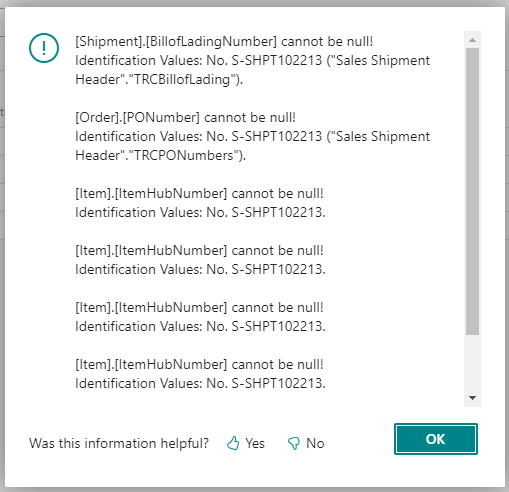
- If set to True (activated), will verify that the required fields are completed before printing can occur.
- It will return error details if the template selected in the above option “Label Template” has required fields but empty mapping values.
- This will override the option “Validate Required Field” in TC Customer Settings.